
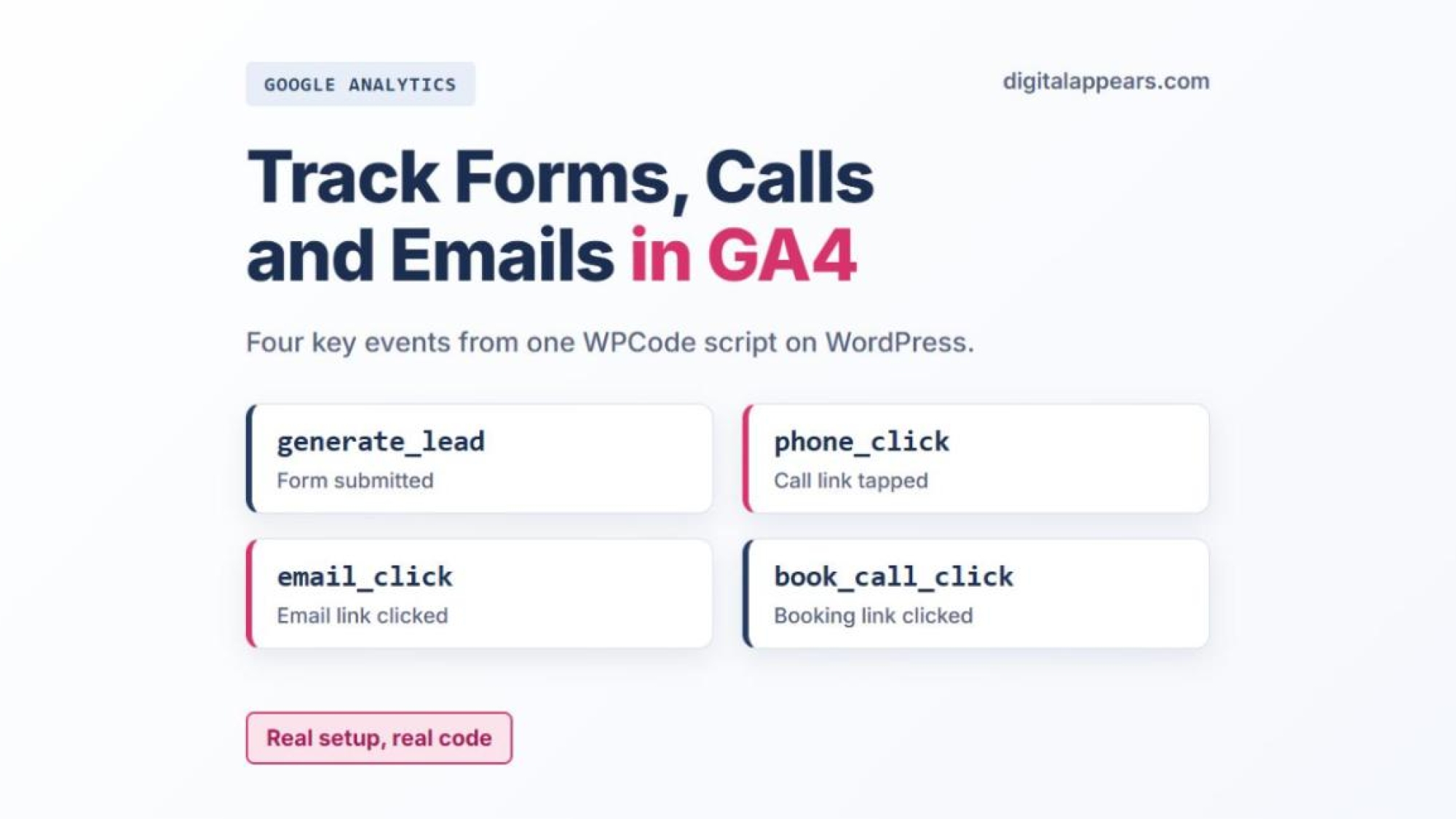
- A GA4 key event is an event you mark as important. On a lead-gen site that usually means form submissions, phone clicks, email clicks and booking clicks.
- On WordPress you don't need a separate plugin for each one. One small script in WPCode can send all four to GA4.
- Use clear names. I use
generate_lead,phone_click,email_clickandbook_call_click. - Mark them from Admin, Data display, Events by clicking the star. Marking an event only affects data from that point forward.
- Test in the Realtime report first. Standard reports can take up to 24 hours to show a key event.
What a key event is
In GA4, an event is anything the property records, such as a page view, a scroll or a click. A key event is an event you mark as important to your business. Google used to call these conversions and now uses the name key event. Marking one does not change how it is collected. It tells GA4 to report on it as something that matters.
For a service business the important actions are rarely a purchase. They are someone sending an enquiry, tapping your phone number, emailing you or booking a call. Those are the four I set up on this site.
What I track on this site
| Event name | Fires when | Why it matters |
|---|---|---|
| generate_lead | A WPForms form is submitted successfully (the contact form and the footer form) | The clearest sign of a real enquiry |
| phone_click | Someone clicks a link that starts with tel: | Shows intent to call, mostly on mobile |
| email_click | Someone clicks a link that starts with mailto: | Shows intent to email you |
| book_call_click | Someone clicks a Calendly booking link | Shows intent to book a call |
generate_lead is one of the event names Google recommends, so I kept it. The other three are names I chose myself. Pick names that are easy to read in a report, then keep them the same everywhere.
Before you start
- GA4 must already be installed. My site loads GA4 with the standard gtag.js tag. I have not tested this script on a site that loads GA4 only through Google Tag Manager, so I won't promise it works there.
- Your forms need AJAX submission. WPForms fires its success event when a form submits without reloading the page. Check that AJAX submission is turned on in the form's settings.
- Know your form IDs. In WPForms, the ID is shown in the form's shortcode on the All Forms screen. The script uses it to label each form.
- You need WPCode. The free version is enough. I use it to add the script without touching theme files.
The script
This is the exact code running on my site. The form names near the top are mine, so replace the IDs and names with your own. Everything else can stay as it is.
/* Digital Appears: send key events to GA4 (forms, calls, email, booking) */
(function () {
	window.dataLayer = window.dataLayer || [];

	function send(name, params) {
		if (typeof window.gtag !== 'function') {
			window.gtag = function () { window.dataLayer.push(arguments); };
		}
		params = params || {};
		params.page_path = location.pathname;
		params.transport_type = 'beacon';
		window.gtag('event', name, params);
	}

	var formNames = { '19928': 'Contact Form', '19929': 'Footer form' };

	function bindForms() {
		if (!window.jQuery) { return; }
		window.jQuery(document).on('wpformsAjaxSubmitSuccess', function (e) {
			var el = e.target || {};
			var id = String(el.id || '').replace('wpforms-form-', '');
			send('generate_lead', { form_id: id, form_name: formNames[id] || ('WPForms ' + id) });
		});
	}

	if (document.readyState === 'complete') {
		bindForms();
	} else {
		window.addEventListener('load', bindForms);
	}

	document.addEventListener('click', function (e) {
		var a = e.target && e.target.closest ? e.target.closest('a[href]') : null;
		if (!a) { return; }
		var href = a.getAttribute('href') || '';
		var text = (a.textContent || '').replace(/\s+/g, ' ').trim().slice(0, 60);
		if (href.indexOf('tel:') === 0) {
			send('phone_click', { link_text: text });
		} else if (href.indexOf('mailto:') === 0) {
			send('email_click', { link_text: text });
		} else if (href.indexOf('calendly.com') !== -1) {
			send('book_call_click', { link_text: text });
		}
	}, true);
})();
It does three things:
- A small
sendfunction sends each event to GA4 with the page path and uses a beacon, so the event still goes through when the visitor leaves the page straight away. - It listens for WPForms' own success event, so
generate_leadonly fires when a form really submitted. A click on the Send button alone would also count failed attempts. - It listens for clicks on links and checks whether the link starts with
tel:ormailto:or points to Calendly.
It sends only the form ID, the form name, the page path and the link text. It does not send anything a visitor typed into a form.
Add it with WPCode
- In WordPress, go to Code Snippets, Add Snippet and choose to add your own custom code.
- Set the code type to JavaScript Snippet. WPCode adds the script tags for you, so paste the code without them.
- Under Insertion, choose Site Wide Footer. That is where mine runs.
- Switch the snippet to Active and save it.
Test it before you trust it
Open GA4 and go to Reports, Realtime. Then open your site in a separate tab, using a browser without an ad blocker, because many blockers stop GA4 completely. Click a phone link, click an email link, click your booking link and send a test form. Each event should show up in Realtime within a few minutes. Google's help page says Realtime updates a few minutes after the action.
I ran this check on my own site and saw the events arrive. If one is missing, look at the form ID first, then check that the link really starts with tel: or mailto:, since some themes build links differently.
Mark the events as key events
An event is not a key event until you mark it. In GA4, go to Admin, then under Data display click Events. Find the event in the Recent events tab and click the star next to it. Once starred, it moves to the Key events tab.
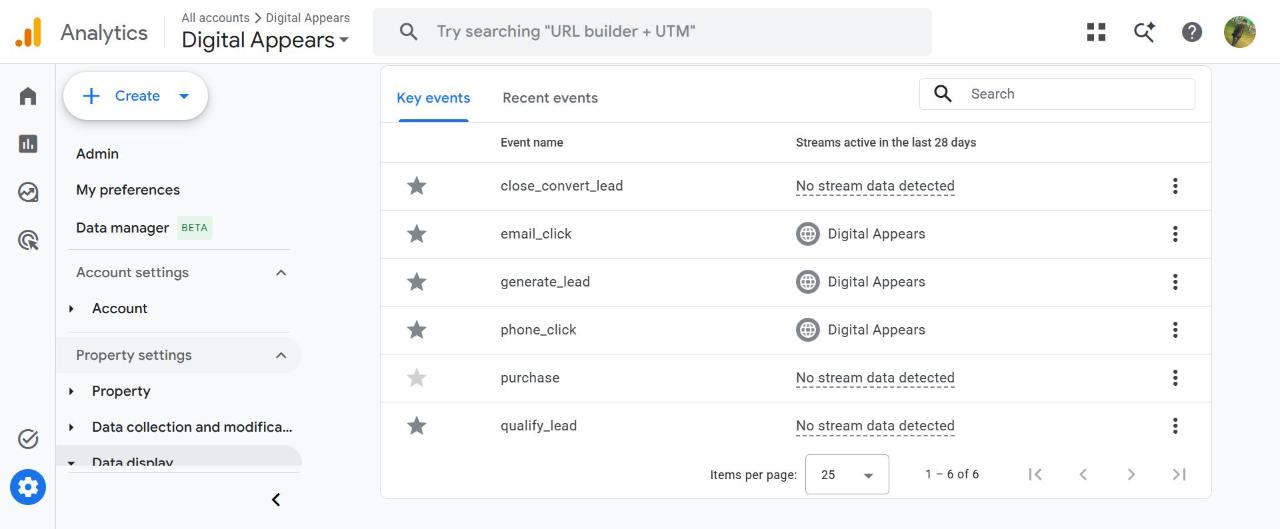
Two things to know. Marking an event only affects data from that point forward, so it will not change anything already collected. And new events can take a while to appear in the Events list.
Once your key events are working, tag the links you share in emails, social posts and QR codes so you can see which campaign each lead came from. My free UTM link builder keeps the names consistent.
My fourth event, book_call_click, has not fired on the live site yet because nobody has clicked the booking link since I set it up, so it is not in my list. Google's help page says you can also create a key event ahead of time from the Events screen, or you can wait and star it once it shows up.
Mistakes to avoid
- Marking everything. If page views and scrolls are key events, the report tells you nothing. Keep the list to actions that matter to the business.
- Counting the button click, not the submission. A visitor can click Send and fail validation. Track the successful submission.
- Counting the same action twice. If a plugin or a tag manager already sends the same event, you will double the numbers. Check the Recent events list for duplicates.
- Treating a click as a finished action. A phone click shows intent, not a connected call. Read it as a signal, not as a confirmed lead.
- Never testing again. A theme, form or caching plugin update can break a tracker without warning. Run the Realtime check again after big changes.
If you also want to see visits that come from AI tools, my guide to tracking AI traffic in GA4 covers that.
Want your GA4 set up properly?
We set up events, key events and reporting so you can see which pages and channels bring real enquiries. See our GA4 setup services.
Talk to Us About GA4 SetupFAQ
Are key events the same as conversions?
In GA4, yes. Google renamed GA4 conversions to key events. Google Ads still uses the word conversions for what it counts in ad campaigns.
How long until a key event shows in GA4?
Realtime reports update a few minutes after someone triggers the event. Standard reports can take up to 24 hours to show it, according to Google's help page.
Will marking an event as a key event change my old data?
No. Marking an event only affects data collected from that point forward.
Do I need Google Tag Manager for this?
Not for this approach. It uses the gtag.js tag that most WordPress GA4 setups already have. I have only tested it that way.
Why not use GA4's automatic form tracking?
My forms submit through AJAX, so I listen for WPForms' own success event. That way a count means a form really went through.